
To change one of your shifts, open Schedule > My schedule on your phone and select the shift. Use the table below to choose the right action. Keep following your current schedule until final approval.
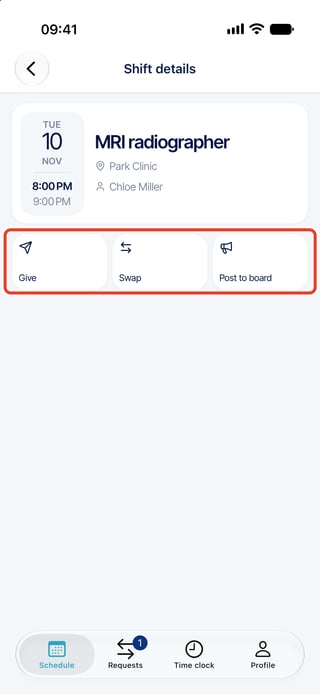
If you do not see an action, ask your administrator. The phone calls an assignment a shift; the web uses assignment.
Choose what you need
| I want to... | Use this | Who has to agree |
|---|---|---|
| Exchange work with one colleague | Swap | Usually your colleague, then an administrator |
| Give my assignment to one colleague | Give | Usually the recipient, then an administrator |
| Take a colleague's assignment | Take | Usually its owner, then an administrator |
| Offer my assignment without choosing a colleague | Post to the job board | Posting makes the offer available; an administrator approves who takes it |
| Volunteer for a posted assignment | Apply | An administrator chooses a bidder; the owner has already offered the assignment |
From request to changed schedule
- You send a swap, give or take request.
- Your colleague opens it and agrees or refuses.
- Usually, an administrator reviews it and makes the final decision.
- Once approved, the assignment changes in the schedule. Check it before making plans.
Keep following your current schedule until the request is approved and the change appears in your schedule. Sending a request or posting an assignment does not change who must work. Job board applications go directly to administrator review.
Follow your request
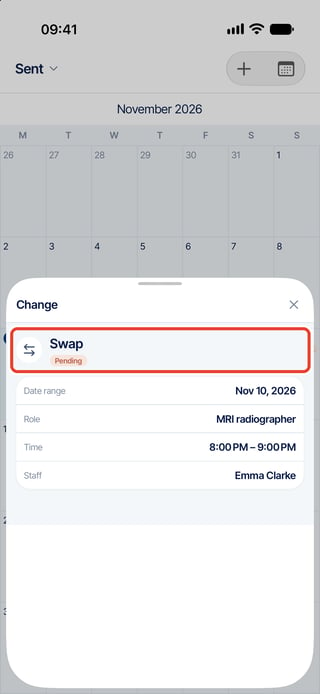
On your phone, open Requests > Sent for your submissions, or Received to answer a colleague. The phone does not offer a creation-date filter for these requests. Within each status group, requests are ordered by the displayed assignment date; calendar view uses that date too.
On the web, open Scheduling > Staff Requests > Manage Change Requests. Check the filters if a request is missing.
The phone groups requests under Pending, Approved and Rejected. Pending does not distinguish colleague approval from administrator approval. Approved means the request completed; Rejected means it was refused or withdrawn. Other states are omitted from the list. A request opened from the calendar may display Changed; this label does not establish that it previously completed. Use Manage Change Requests on the web to check the precise state.
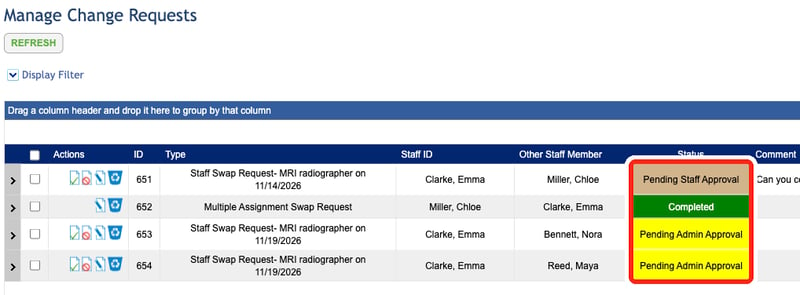
| Web status | Meaning and next step |
|---|---|
| Pending Staff Approval | Your colleague has not answered. Contact them to follow up. |
| Rejected by Staff | Refused or withdrawn by a participant. |
| Pending Admin Approval | An administrator has not decided yet. Contact your administrator to follow up. |
| Rejected by Admin | Rejected by an administrator. |
| Completed | The request completed and changed the schedule. |
| Deleted | The record was deleted; this does not undo an earlier schedule change. |
| Request Invalid | The request can no longer proceed. |
| Changed After Completion | An assignment changed after completion; check the current schedule. |
| Processing | Processing started but completion has not been recorded. |
If Processing remains after an error, ask an administrator to inspect every affected assignment before retrying; some changes may already have been saved.
Good to know
- To answer, follow or withdraw a request, use this guide.
- Email and phone alerts depend on your organization's settings. Use the request status and schedule to check the outcome.
- To withdraw a pending request or application, use the web. There is no withdrawal button for these requests on the phone.
Common questions
Why can't I find a colleague or a post? Access, published assignments and eligibility for the work all matter. Check the selected date, then ask your administrator. What to check.
Does the first applicant get the assignment? No. An administrator chooses who gets it.
Why is my application invalid on the web? Another person may have been chosen, the assignment changed or the post removed. It does not always mean someone refused you.
The wrong request was approved. Can I cancel it? Ask your administrator to correct the schedule. Rejecting or deleting the request afterward does not undo the change.
Can I exchange several assignments? Use the web for several assignments between the same two people. The phone handles one assignment on each side.
Related
- Swap an assignment with a colleague
- Give an assignment to a colleague
- Take a colleague's assignment
- Follow, answer or withdraw a shift change request
- Post an assignment to the job board
- Apply for an assignment on the job board
- Can't see swaps or the job board? What to check
- Use the job board on your phone