
Apply for an assignment offered on the job board when you want to take it. An administrator chooses who gets it.
If the board or an expected post is missing, ask your administrator. The phone calls an assignment a shift and an application a bid.
Apply on your phone
- Open Schedule and choose Job board in the schedule selector.
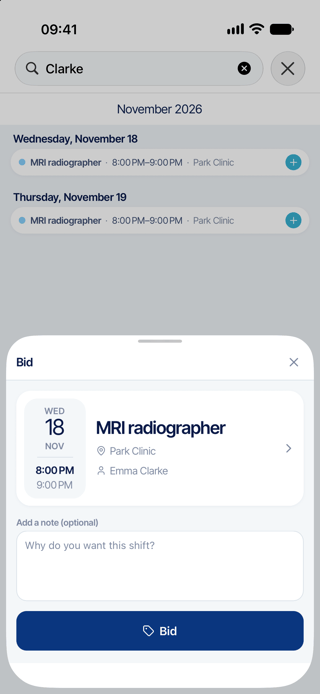
- Scroll the list to the date you want, or search by name or activity, then tap an eligible post. Check the role, location and hours.
- In the panel opened by tapping the offer, add an optional note, then tap Bid once to submit your application.
- While your application is pending, the offer has an hourglass marker. Reopen it to see Bid pending, and follow the application in Requests > Sent.
Apply on the web
- Open Scheduling > Staff Requests > Job Board.
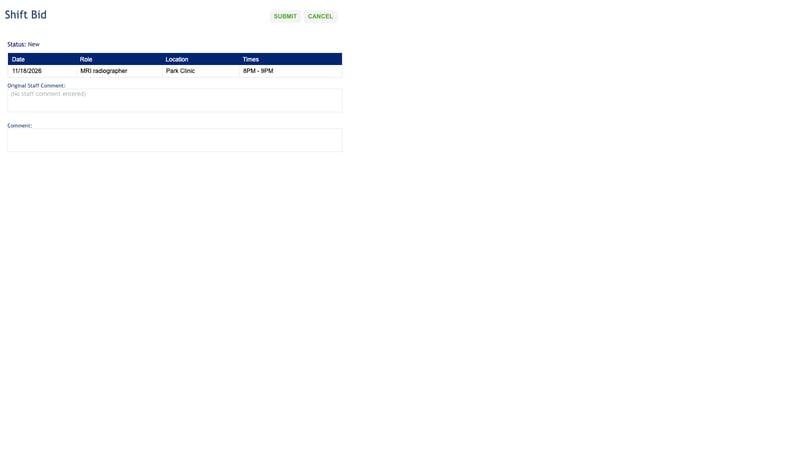
- Choose an assignment marked as available and open Shift Bid.
- Review the assignment, add a comment if useful, then click Submit.
- Follow the application in Manage Change Requests.
What happens next
Your application goes straight to administrator review. The person who posted has already offered the assignment. The schedule changes only when the chosen application is approved.
Several people can apply. Your phone does not show all applicants or their ranking. If someone else is chosen, the assignment changes or the post is removed, your application may become Request Invalid on the web and disappear from the phone list.
Good to know
- The board shows posts you are eligible to take, plus your pending applications. Check the date first if a post is missing. Ask your administrator to check your access and eligibility for the role on that date.
- You cannot apply for your own assignment.
- To withdraw a pending application, use the web row’s Reject action.
- Do not rely on an email or phone alert to confirm the result. Check your request and schedule.