
Use these checks when an action, assignment or request is missing. Start with the screen and date where the problem occurs.
Staff should ask their administrator for access changes. Administrators can use the checks below or contact their customer success contact.
On your phone or staff web page
| Symptom | Possible cause | What to do |
|---|---|---|
| No swap, give or take action | A request is already pending, or access is missing | Check Requests > Sent and Requests > Received for a pending request involving this shift. If you find none, ask your administrator to check your access. |
| No colleague or shift to select | Date, schedule visibility or role eligibility does not match | Check the date. Ask your administrator to check published work and candidacy for both people |
| The board works on web but is missing on phone | Phone access also depends on reading other staff's schedules | Ask your administrator to check View Other Staff Schedules and the intended schedule access |
| A post is missing | Date or candidacy differs, the post was removed, or someone was approved | Check the date and your requests, then ask your administrator to check the current assignment |
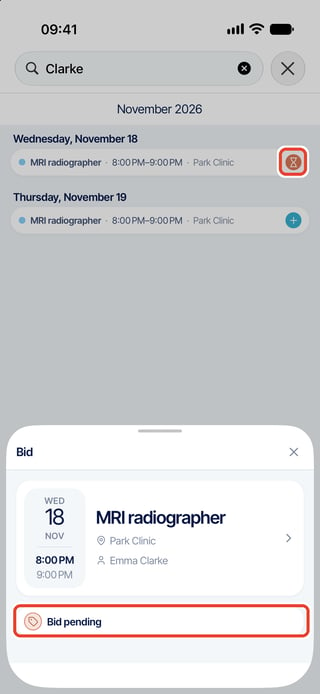
| Hourglass or Bid pending | You already applied | Follow the application in Requests > Sent |
| No withdrawal button | Your own change requests and applications are read-only on phone | Find the pending request on the web and use its row’s Reject action, or ask your administrator |
| Only a general error appears | The phone may not show the detailed cause | Check whether the request exists before retrying. Give your administrator the date, action and error text |
| No email or phone alert | Notification settings or delivery may be involved | Check the request status and schedule. Ask your administrator to check notifications |
Administrator checks, in order
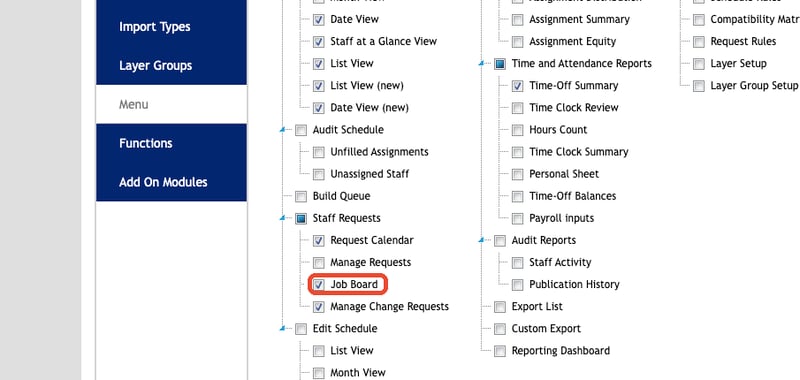
- Confirm the person's primary Security Group. Check the menu and function permissions separately using Set up swaps and the job board.
- Check the affected role, assignment date, publication and the person's schedule access. For phone swaps, also check Export Role and both people's candidacy for the work they would receive.
- In Manage Change Requests, review saved Display Filter choices and the request's current state.
- After correcting access, reload the person's session and verify the action with their account.
| Symptom | Possible cause | What to check |
|---|---|---|
| No web board or change-request menu | Missing menu grant | The primary group's Menu entries under Scheduling > Staff Requests |
| Other people's requests are absent | Missing view permission, saved filters or wrong page | View Other Requests; staff, role and status filters; use Manage Change Requests |
| No Approve or Reject | Missing authority or request no longer pending | Edit (Approve / Deny), request state and whether the person is a participant |
| Posting is unavailable | Posting rights or role/publication requirements are missing | Own/others/empty posting rights, Eligible for Job Board, Display Role and published working assignments |
| Posting vanishes in the newer date view | The publication selector includes all publication states | Change the publication filter to show only published assignments. Check whether the posting action appears. |
| Approval fails or a request becomes invalid | The assignment changed, the post was removed or requests compete | Open the current assignment and decide competing requests one at a time |
| Cannot remove another person's post on phone | Removal checks who created the post | Have its creator remove it, or arrange removal through the authorized web workflow |
| No organization-wide queue on phone | The phone shows personal requests only | Review everyone's requests and applications on the web |
Good to know
An invalid request is not necessarily a refusal. Rejection or deletion after approval does not undo the schedule change.
If the problem continues, send your customer success contact the screen name, the action you tried, the assignment date, the exact error message and the current request status.