
Answer when a colleague asks to swap with you, give you work or take your assignment. You can also follow your own requests and withdraw them while they are still pending.
If the request or action is missing, ask your administrator.
Answer on your phone
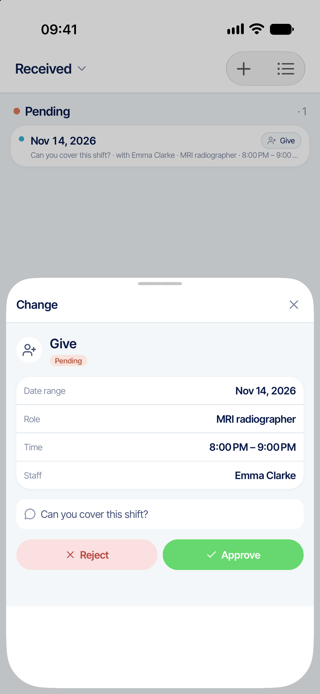
- Open Requests > Received and open the request.
- Check the displayed assignment, colleague and note. This phone panel shows only one assignment. For a swap or a request containing several assignments, review all assignments on the web before approving.
- Your agreement usually sends the request to an administrator. If you also have administrator approval rights, accepting it on your phone can complete the change immediately. Check the request status and both schedules afterward. Tap Approve to agree, or Reject to refuse. The phone has no field for a reply comment.
- After a successful response, the request leaves Received. This does not mean it was cancelled. Follow its subsequent state on the web and check the schedule after final approval.
Answer on the web
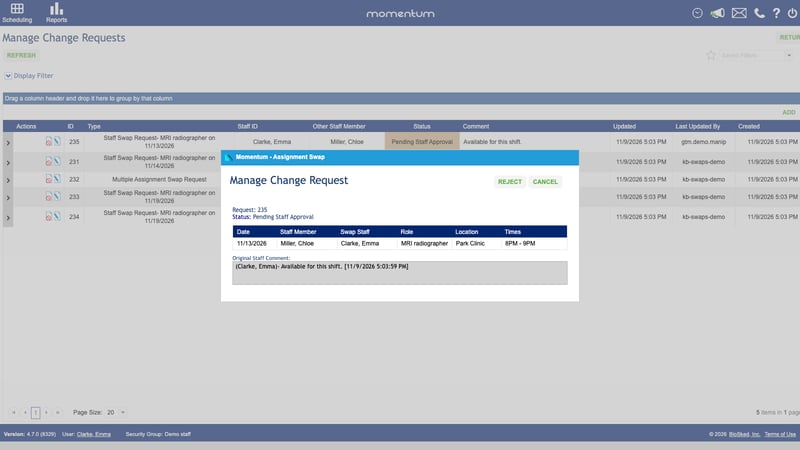
- Open Scheduling > Staff Requests > Manage Change Requests and open the request row.
- Review the assignments and the original comment. Add a comment in Approve/Reject Comment if the field is editable.
- Click Approve or Reject, then check the status.
Follow or withdraw your own request
- Open Requests > Sent and select your request. Read its status and note. See what each status means to find out who needs to act. The phone lists these requests by assignment date, without a creation-date filter.
- Find your pending request or application in Manage Change Requests on the web and use the row’s Reject action. If the request-opening control is available, you can also open it and click Reject.
- Check the resulting status. Although the action says Reject, it is also how you withdraw your own pending request.
Good to know
- Your own swap, give, take and bid details are read-only on the phone. Use the web or ask your administrator to withdraw one.
- Delete on the web is a separate action with separate permissions. It is not an undo button.
- If the request was already approved, ask your administrator to correct the schedule.
- A missing email does not tell you whether the request succeeded. Check the request and the current schedule.