
Ask to exchange your assignment with a colleague's. You can choose assignments on different dates.
If Swap is missing on your phone, ask your administrator. The phone calls an assignment a shift.
On your phone
- Open Schedule > My schedule. Choose the date and tap your shift. Open View details if needed.
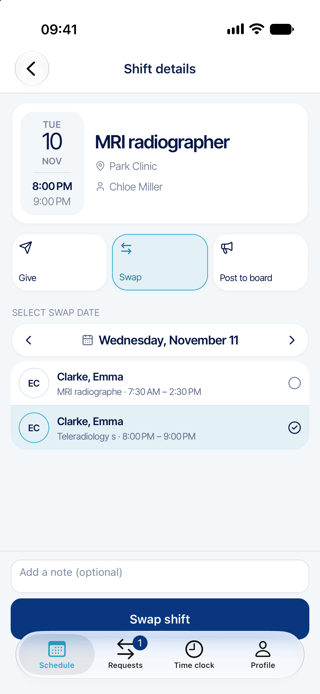
- Tap Swap. Under SELECT SWAP DATE, use the arrows or date picker to choose a date from tomorrow onward. Today and earlier dates cannot be selected for the counterpart shift.
- Select one of the available shifts. Check the colleague, role, date and hours. If you change the date, select a shift again.
- Add a note if useful, then tap Swap shift. If rule violations appear, the request has not been sent. Close the message and resolve the issue or contact your administrator. Only users with the explicit override permission can submit despite these violations.
- Open Requests > Sent to follow the request. Your colleague usually answers before an administrator decides.
You can also start from a colleague’s shift: open Schedule and choose the configured filter that contains your colleague in the schedule selector. If no suitable filter appears, ask your administrator. Open the shift, tap Swap, then select one of your own shifts to offer in return.
On the web
- Open Scheduling > Staff Requests > Manage Change Requests, then click Add.
- Choose Swap Assignments, then click Start Wizard.
- Choose a date range, click Search and select your assignment or assignments. Click Next.
- On the colleague-selection step, set the date range for the assignments you want to receive and click Search. It initially shows only the date of your first selected assignment. Select assignments from one colleague, then click Next.
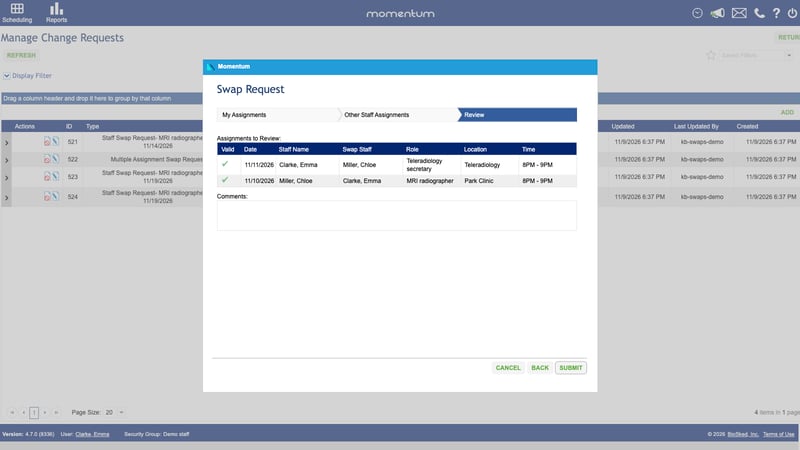
- Review both sides, add a comment if useful, then click Submit.
Good to know
- The phone swaps one shift for one shift. The web can include several assignments, all between the same two people.
- Both people must be eligible for the work they would receive. If the list is empty, check the date and ask your administrator to check eligibility and published assignments.
- A pending request can hide the swap action. Check your requests before sending another one, especially after a connection error.
- Keep following your current schedule until final approval. Answering and withdrawing requests explains what happens next.