
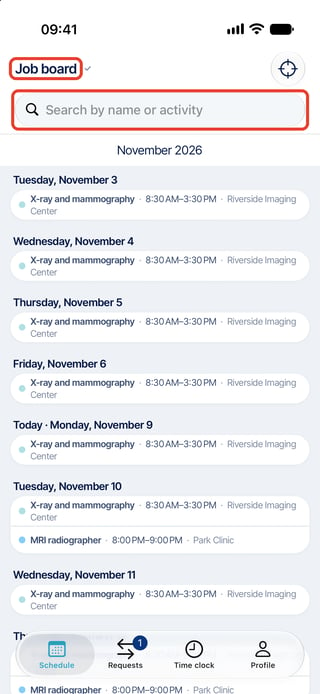
On your phone, open Schedule and choose Job board in the schedule selector. Scroll to the date or search by name or activity to find an offer. If the board or an expected offer is missing, ask your administrator.
Offer your shift
You stay responsible until a replacement is approved.
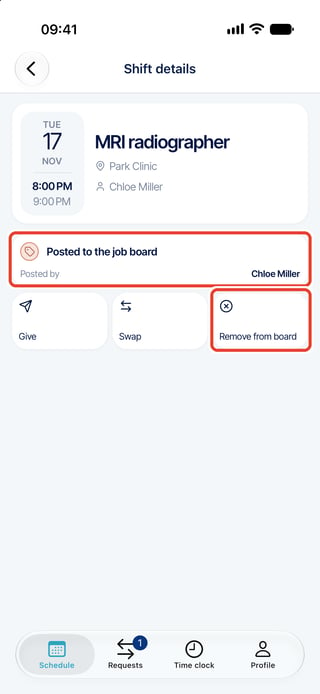
- Open My schedule, choose the date and open your shift. Tap View details if needed, then Post to board.
- Review the shift and tap Post to board to confirm. There is no note field.
Apply for an offer
- Return to Job board and tap an offer. Check the role, location and hours.
- Add an optional note, then tap Bid once. An hourglass marks a pending application; reopen the offer to see Bid pending.
- Follow it in Requests > Sent. An administrator chooses who gets the assignment. Check your schedule after approval.