
Set up who can request changes, post assignments, apply and approve. There is no single switch that enables all of this.
You need permission to manage staff, security groups and roles. Ask your customer success contact for help if these settings are unavailable.
Setup checklist
- Confirm with your customer success contact that scheduling is available for your organization.
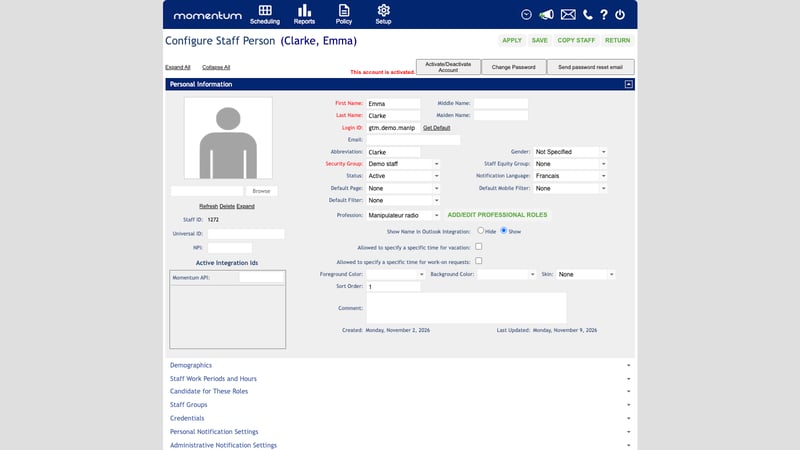
- Find the person’s primary Security Group in their staff record. Check who else uses it. If the change is for this person only, create a separate group that preserves their existing access. Assign it as their primary group before adding permissions.
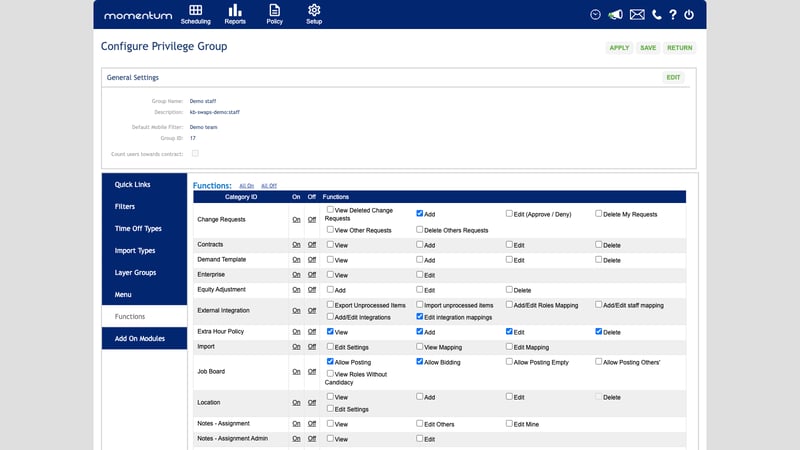
- Open Setup > System Security > Configure Security Groups, then open the required group. In Menu, open Scheduling > Staff Requests. Enable Job Board for people who browse or apply for posted assignments. Enable Manage Change Requests for people who send, follow, answer or withdraw requests on the web, including applicants and approvers.
- In Functions, grant the functions below and save. Menu access and action permissions are separate.
- In the primary security group’s Filters tab, assign a common Date View schedule filter covering the intended colleagues and enable Mobile. Verify that the staff account can read the filter and select it on the phone.
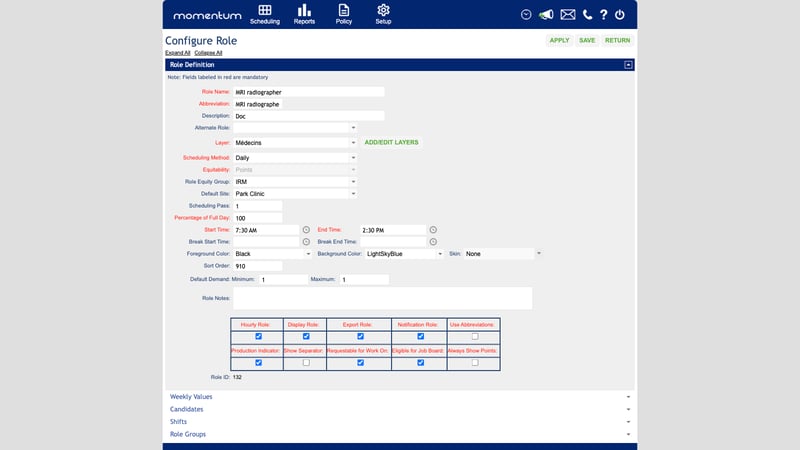
- For each working role you want to offer on the board, enable Eligible for Job Board and Display Role. Enable Export Role for roles that should appear among phone swap candidates. Save the role. Time-off roles and assignments tied to staff requests cannot be offered on the board. The offer must be an eligible published assignment in the main schedule.
- Check eligibility for the role on the assignment date. For a swap, both people need to be eligible for the work they receive. Publish the relevant schedule and check that they can see the assignments.
- Configure notifications below, reload the affected sessions, then run the test.
Who needs which functions
| Person | In Functions, grant what they need |
|---|---|
| Staff member requesting a swap, give or take | Change Requests > Add; Staff > View Other Staff Schedules for the intended colleague schedules |
| Staff member applying on the board | Job Board > Allow Bidding; Staff > View Other Staff Schedules for phone access to colleagues’ assignments |
| Person posting their own assignments | Job Board > Allow Posting |
| Person posting for others or posting empty assignments | Add Allow Posting Others' and/or Allow Posting Empty only if these are part of their duties |
| Approver | Change Requests > View Other Requests and Edit (Approve / Deny); Staff Filter > View Display Filter Panel to use the filter panel |
For the popup-based review and comment workflow in these guides, the approver also needs Change Requests > Add. This permission also allows creating change requests. Without it, authorized approvers can use the row’s approval and rejection actions, but cannot normally open the popup.
Keep schedule visibility within the person’s intended access. Approvers do not need role eligibility just to decide on other people’s applications. Approval rights can also complete a received request immediately.
Notifications
Enable Notifications in the organization settings if messages are wanted. In staff records, review Personal Notification Settings and Administrative Notification Settings; check Notification Role on the roles.
Choose the events for the messages you want to send. Change Request Added Involving Me alerts the colleague asked to respond. Change Request Admin Approval Required alerts subscribed approvers. Assignment Posted to Job Board alerts eligible colleagues about an offer. Check the recipients and delivery channel for each subscription.
Phone alerts also need Mobile Notifications, the push service, a registered device and device permission. Ask your customer success contact to check these prerequisites. Batch Notifications can delay messages.
Test the setup
Use two staff accounts without administrator approval rights and a separate approver. Send a swap request, have the colleague accept it, then have the approver approve it. Check both schedules. On a separate assignment, test posting, applying and approving an applicant. Check that the selected person receives the assignment. Test notification delivery separately.