
Review staff swap, give and take requests on the web. Final approval changes who is assigned to the work.
If the page or approval buttons are missing, ask your customer success contact to help check access.
Approval changes the schedule. Rejecting or deleting the request afterward will not reverse that change. If you approve the wrong request, you must correct the schedule.
Opening the review and comment popup requires Change Requests > Add, which also allows creating requests. Without it, authorized approvers can use the row’s decision actions. See access setup.
Review and decide
- Open Scheduling > Staff Requests > Manage Change Requests.
- Expand Display Filter. Check the staff, staff group, role and Status filters. Saved filters can hide requests you need to review.
- Open a row. Check both people, the proposed assignments, the original note and any warnings about changed assignments or eligibility.
- Compare the proposed assignments with both people’s current schedules. Check dates, hours, overlapping assignments and your team’s scheduling rules. Read any warnings. Approval does not check every rule again.
- Add a short comment in Administrator Comment where the field is editable. Click Approve or Reject. Read any confirmation warning before continuing.
- Check the resulting status and the schedule. Approval transfers the assignments; rejection leaves the proposed change unexecuted.
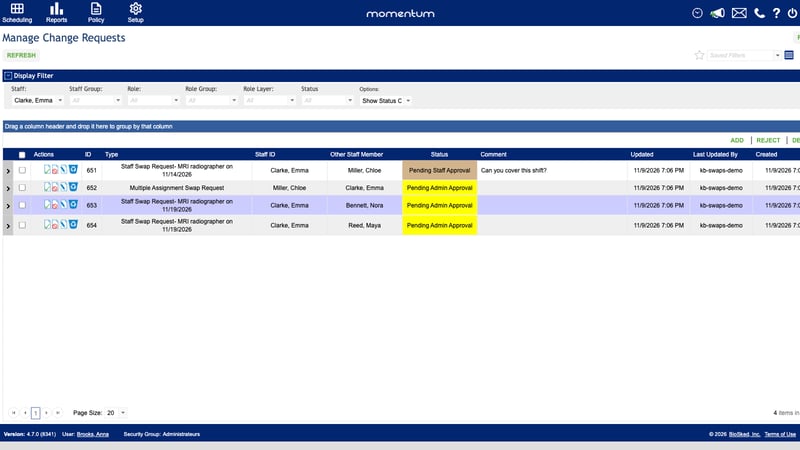
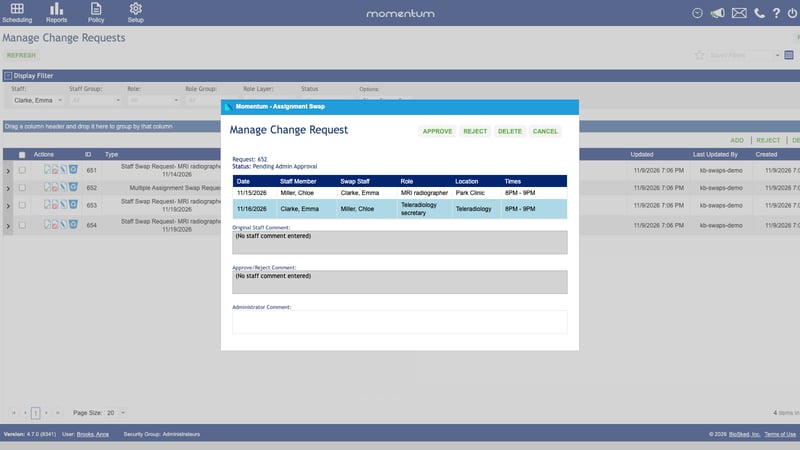
Approval does not always need two separate decisions
Usually the colleague agrees first, then an administrator approves. A recipient who also has approval rights can complete a received request when they accept it on the phone. The classic web page also lets an authorized approver proceed before the colleague agrees, with a warning. Give approval rights only to people who should have that authority.
Decide on several requests
- Review each request first. Choose only requests that do not need the same assignment.
- Select their checkboxes, then click Approve or Reject.
- Read the confirmation, then check the result of every selected request. If processing stops, some requests may already be approved or rejected. Approved requests may already have changed the schedule. Check those results before trying again.
For competing requests, decide one at a time. Completing one can make another invalid because the assignment has changed.
Good to know
- Use the web to manage everyone's requests. The phone only shows requests involving the signed-in person and has no response-comment field.
- This queue also contains job board applications. Choose a bidder before approving one.
- If a decision fails, check the current assignment and request status before retrying. Contact your customer success contact if the reason remains unclear.