
If your organization uses mobile clocking, the Momentum app has a Time clock tab. Use it to clock in when you start work and clock out when you finish.
Before you start
- Update the Momentum app from the App Store or Google Play (version 3.0.14 or later).
- After the update, the Time clock tab appears the second time you open the app. To see it at once, sign out and sign in again.
- If you still do not see the tab, ask your Momentum administrator.
Clock in
- Open the app and tap Time clock.
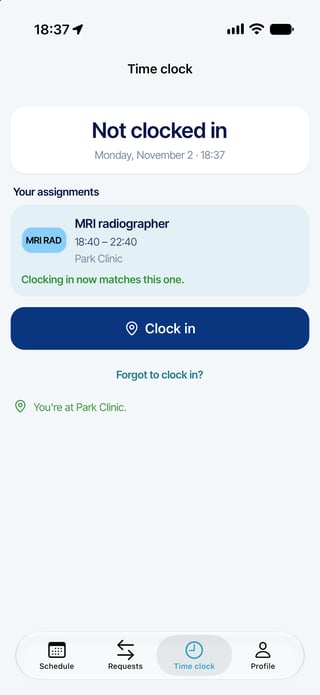
- The card at the top shows Not clocked in, with today's date and time.
- Below it, under Your assignments, you see today's assignments. The one that matches the time now is highlighted.
- Tap Clock in. Wait until the card shows Clocked in and the time.
Clock out
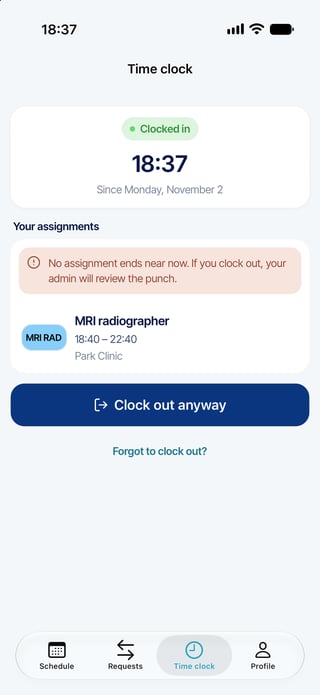
- Open Time clock. The card shows Clocked in and since when.
- Tap Clock out. Wait until the card shows Not clocked in.
When the app says your admin will review the punch
If no assignment starts or ends near the time now, or if you are outside the time allowed for your assignment, the app tells you that your admin will review the punch. The button then reads Clock in anyway when you arrive, or Clock out anyway when you leave. Your punch is recorded and your admin checks it.
At a site with a zone
Your organization can set a zone around a site. At such a site, the app shows a line about your position:
- "You're at {site}.": you are inside the zone.
- "You're at the edge of {site}. Your punch may be reviewed."
- "{distance} outside {site}. Your punch will be reviewed."
- "Location is off. Your punch will be sent without it and reviewed."
At a site with a zone, your phone reads its location only while the Time clock screen is open, and sends only your distance to the site and its accuracy. Your coordinates stay on the phone. A punch outside the zone or without location is kept and flagged for review. At a site without a zone, the app never asks for your location.
The first time, your phone asks whether Momentum may use your location. On iPhone, this request is shown in English. More in the article "Mobile clocking and privacy: questions and answers".
If your punch does not go through
Clocking needs a connection. Without one, the app shows Punch not confirmed and nothing is kept on your phone to send later. Check your status on the card, then try again once you are connected. If you could not clock at the right time, use Forgot to clock in? or Forgot to clock out? (see the article "Forgot to clock in or out").
The time recorded is Momentum's time, not your phone's clock.
Questions? Ask your Momentum administrator.