Login to Momentum.
Click on the My Schedule Quick Link to view your schedule.
If this does not exist, following the instructions below.
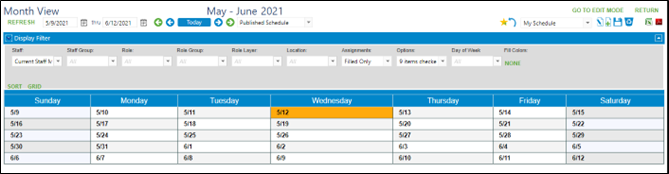
Choose the option Current Staff Member under Staff in the display filter. This will show the schedule of the person logged into Momentum. Click on Refresh, then follow the instructions below to save the filter.
Go to Scheduling > View Schedule > Month View
Click on Display Filter to expand
Click on drop down arrow under Staff and choose Current Staff Member
Click on Assignments and choose Filled Only
Options – click on Options and choose options as needed, including abbreviate staff and role
Click on the New Filter icon in the upper right corner by the filter drop down
Enter name for the new personal filter
Click on the blue Save button