
Use the activation email sent for your Momentum account.
Activate your account
- Open the newest Momentum Account Activation email. Check junk mail if needed.
- Open its link within 72 hours of issue.
- Note the User ID on the page. This is your Momentum login ID.
- Enter New Password, then repeat it in Confirm. Use 8 to 15 characters, different from your login ID.
- Select Activate Account.
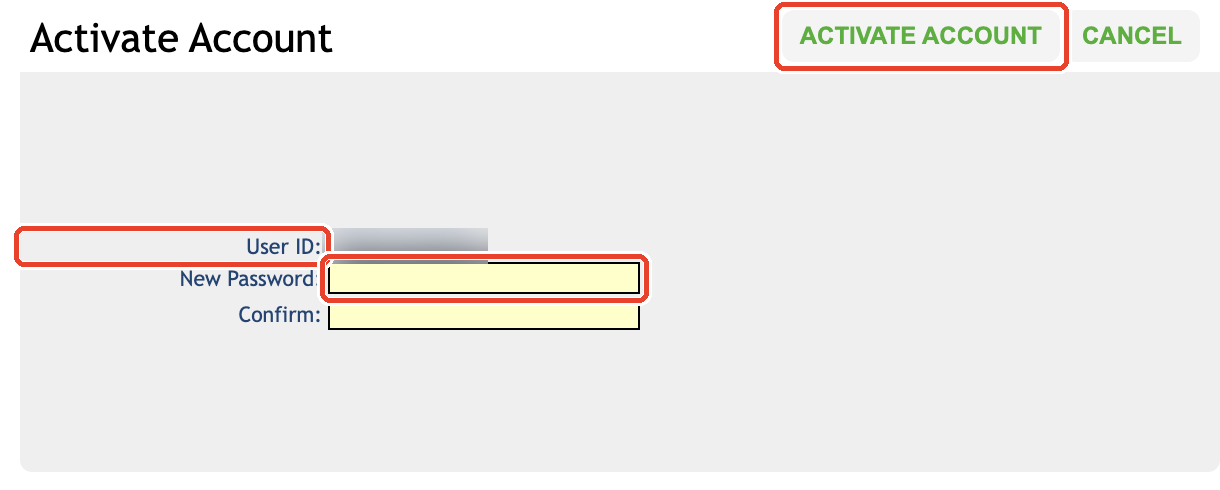
If a message says your password does not meet the rules, follow the form's guidance.
If asked, choose Hint Question, enter Answer, then select Set Password Hint. Remember your answer for password recovery.
After confirmation, sign in on your phone or the web.
If the link does not work
Ask your administrator for a new link, then use the newest email. A link can expire, be replaced or have already been used.
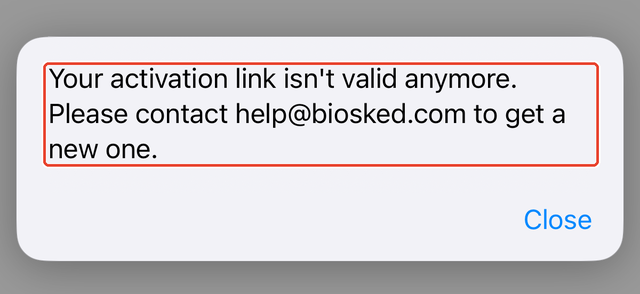
The alert may direct you to BioSked or show an unclear message. Your administrator is the person to ask for a new activation link.
Already activated but forgotten your password? Follow Reset or change your Momentum password. For a hospital account, follow your organization's sign-in instructions.
Ask your administrator
If no email arrives, give your name and Momentum login ID if known. Ask them to check the email address on your account and resend the activation link. If a link fails, tell them when the email arrived and what the message says. Do not forward the link or send your password.
For other problems, see Can't sign in?.