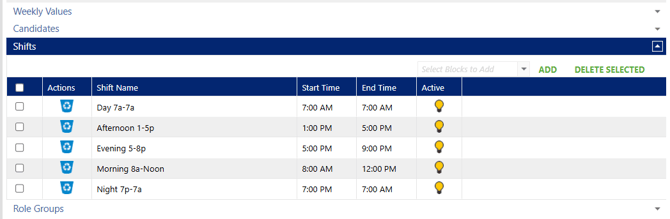
Prior to using the new shift view, time off blocks need to be properly setup for the required shift times. In addition, roles required in the shift view must also have shift options selected.
Setup Time Off Blocks
Go to Setup < Calendar Setup < Time Off Blocks
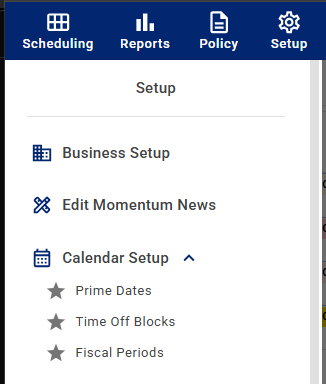
Verify that time off block exist with the name of the shift name required as well as the start/end time. New time off blocks may be required.
To create a new time off block, click on ADD in the upper right corner.
Add name, start time, end time, day equivalent, and total shift hours.
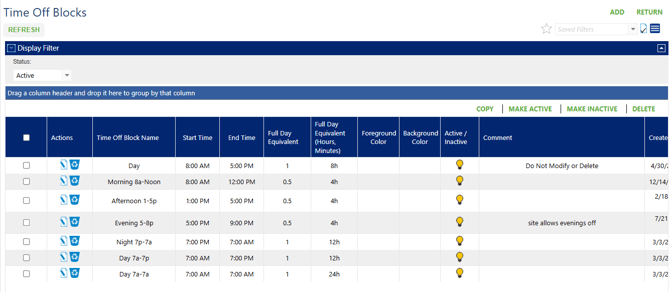
Once required time off blocks are created roles require shift association.
Go to Setup < Role Setup < Role List
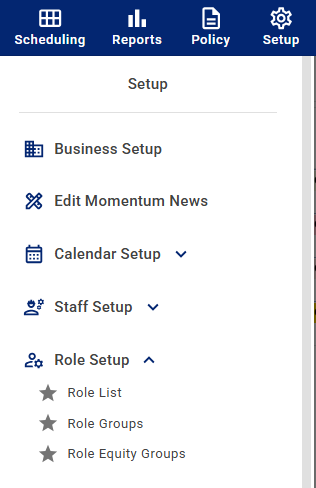
Use the display filter to find the required roles for shift view.
Click on the role to open the Configure Role page.
In the bottom section click on Shifts to expand the option.
Click on the dropdown option and choose the required shifts.
Click on ADD.
Save the role and continue with all required roles.