
Your Profile shows a Leave balances section when time-off policies are activated for your organization and your administrator has turned on the setting that shows balances in the app. If you do not see it, ask your Momentum administrator.
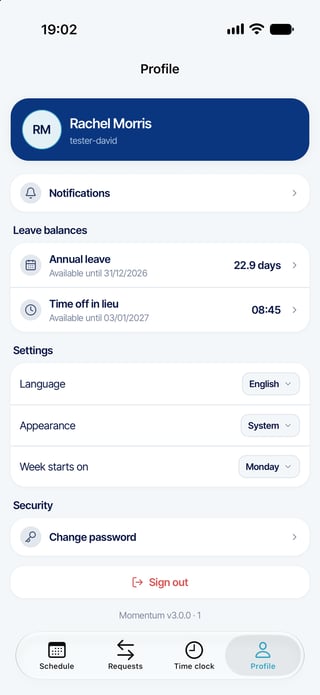
See your leave balances
- Tap Profile.
- Under Leave balances, each type of leave shows what you have left. If part of it expires, the app shows how much and when.
- Tap a balance to see how it was calculated: Credited, Taken, Planned, Awaiting approval, and its History (carried over, expired, manual adjustments).
See your hours balance for a period
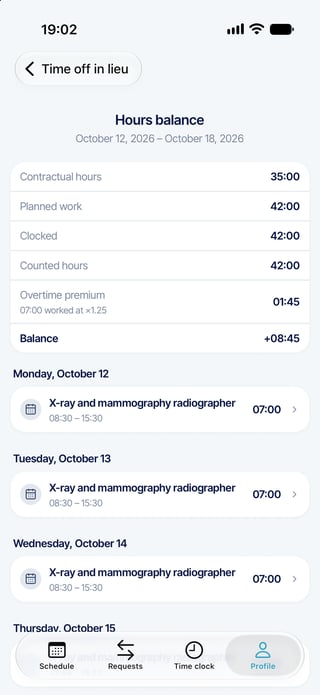
If the extra hours you work go into a balance that you take back as time off, open that balance, then tap a period in its History. Hours balance shows, for that period:
- Contractual hours
- Planned work and Planned time off
- Clocked
- Counted hours and Overtime premium
- Balance
The page also lists the assignments and punches these figures come from. The figures follow your organization's counting rules. If one looks wrong, ask your Momentum administrator.
For administrators
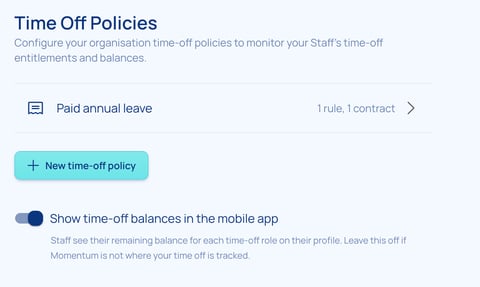
Balances appear in the app only when both are in place: time-off policies activated with your customer success contact, and the setting Show time-off balances in the mobile app turned on by you, in Setup > Staff Setup > Time Off Policies. The setting is off by default. Leave it off if you do not manage time off in Momentum.
Questions? Ask your Momentum administrator.