
Tolerances say how far a punch can be from the planned time and still count as on time. You set them for each direction: clock-in early, clock-in late, clock-out early, clock-out late. A punch outside its tolerance is kept as punched and flagged for review. The planned assignment is never changed.
Available with the Clocking module, when clocking tolerances are activated with your customer success contact.
Set the tolerances
- Go to Setup > Clocking Settings. (The clocking part of Business Setup now shows a link to this page.)
- Under General Settings, set Rounding Mode to Granular to set each direction separately. Global keeps one rounding rule for every punch, as before.
- Under Review Matching, set the Clocking Match Tolerance (Minutes): how far a punch can be from a planned start or end and still be matched to that assignment. Each tolerance below can go up to this value. The switches Auto Flag Non-Matching Clock In and Auto Flag Non-Matching Clock Out in the same section turn on the flagging of clock-ins and clock-outs that do not match the plan.
- Under Clock-In Tolerance, enter the minutes allowed Early and Late. Tick Automatically round to bring a punch made within the tolerance to the planned time.
- Do the same under Clock-Out Tolerance.
- Check the Preview, then click Save at the bottom of the page.
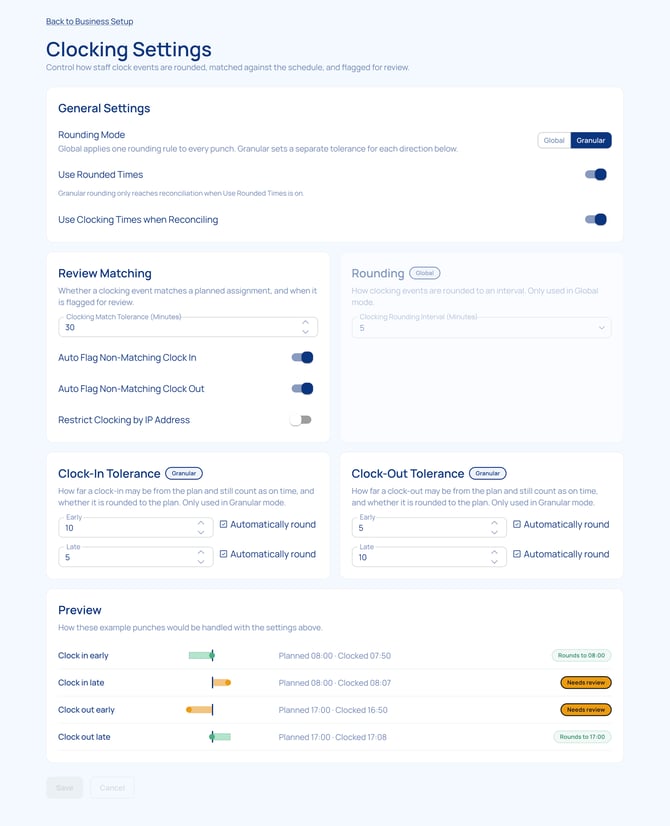
Read the preview
The Preview shows example punches handled with your settings, for example Planned 08:00 · Clocked 07:50 with Rounds to 08:00, or Needs review.
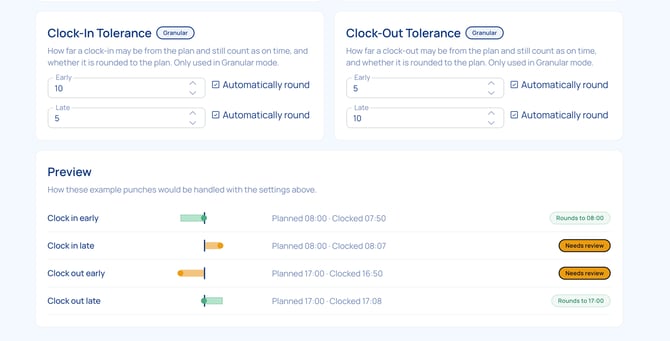
Example
| Assignment 08:00 to 16:00. Clock-in tolerance: 10 min early, 5 min late, Automatically round ticked. | Result |
|---|---|
| Clock in at 07:50 | Within the tolerance, rounded to 08:00 |
| Clock in at 08:04 | Within the tolerance, rounded to 08:00 |
| Clock in at 08:07 | Outside the tolerance: kept at 08:07 and flagged for review |
Good to know
- Tolerances apply to every punch: app, web time clock, badge readers and file import.
- Rounded times count in reconciliation only when Use Rounded Times, under General Settings, is on.
- Punches outside the tolerance, and punches that match no planned assignment, show in Time Clock Summary, not in Time Clock Review (see "Review flagged punches").
- Your customer success contact coordinates the set-up and any later change of tolerances with you.
Questions? Contact your customer success contact.