
A punch is not refused because it is outside the zone or has no location: it is recorded and flagged. You check flagged punches on two pages under Reports > Time and Attendance Reports, and you need both.
What is flagged and where
| Flag | What it means | Where you see it |
|---|---|---|
| Outside the zone | Punch made farther from the site than the radius. The comment gives the distance, the radius and the accuracy, for example "Outside the geofence: 640 m from the location (fence 150 m, accuracy 18 m)." | Time Clock Review, to approve or reject |
| No location | Punch at a site with a zone, sent without a position. Comment: "No position was measured for this location." | Time Clock Review, to approve or reject |
| Forgotten clock-in or clock-out | Time entered by the staff member with Forgot to clock in? or Forgot to clock out?, with their comment if they wrote one | Time Clock Review, to approve or reject |
| Does not match the plan | Punch outside the tolerance, or punch that matches no planned assignment. Shown whether or not tolerances are activated. | Time Clock Summary only, in orange, marked (Match Review) |
Zone comments are written in the staff member's language.
Approve or reject in Time Clock Review
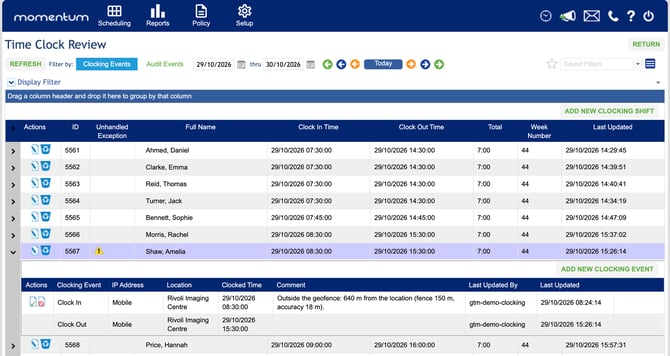
- Go to Reports > Time and Attendance Reports > Time Clock Review.
- Set the dates (from, thru) and click REFRESH.
- A warning sign in the Unhandled Exception column marks a flagged punch. Click the arrow at the start of the row to open its clocking events. App punches show Mobile in the IP Address column.
- Read the Comment, then use the approve icon (green tick) or the reject icon (red sign) in the Actions column of the flagged event.
Check Time Clock Summary for punches that do not match the plan
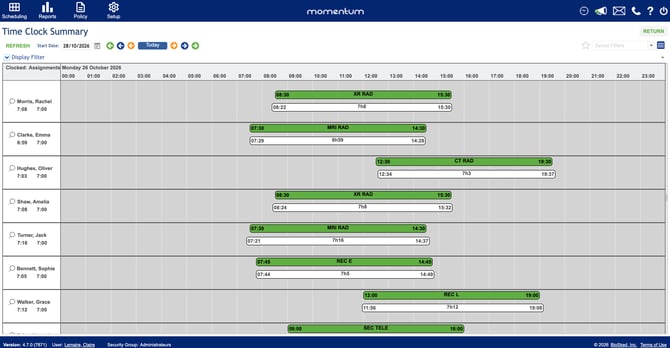
- Go to Reports > Time and Attendance Reports > Time Clock Summary.
- Set the Start Date and click REFRESH. Each person shows the planned assignments and, below them, the clocked times.
- Punches in orange, marked (Match Review), are outside the tolerance or match no planned assignment. They do not appear in Time Clock Review: check them here and correct the plan or the punch if needed.
Tips
- Check both pages before you reconcile a fiscal period.
- If the same person is often flagged for distance at the same site, check that site's center and radius, then talk it through with the person.
- Approving and rejecting need the same permission as today for clocking exceptions.
Questions? Contact your customer success contact.