
A zone is a circle around a site: a center point and a radius in meters.
At a site with a zone, the staff member's phone reads its location only while the Time clock screen is open, and sends only the distance to the site and its accuracy; the coordinates stay on the phone. A punch is not refused because it is outside the zone or has no location: it is recorded and flagged for your review. At a site without a zone, the app never asks for location.
Available when mobile clocking is activated with your customer success contact.
Copy the coordinates from Google Maps
- Open Google Maps in your browser and find the site's main entrance, or the middle of its buildings.
- Right-click that point. The first line of the menu shows two numbers, such as 48.8584, 2.2945. Click them to copy them.
Set the zone
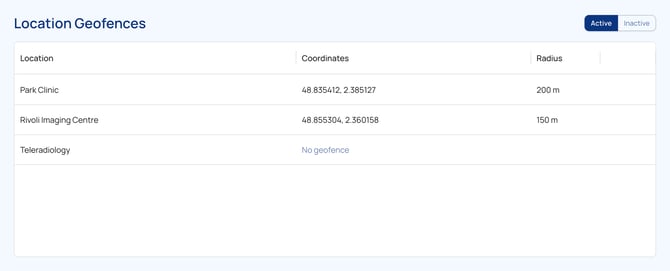
- Go to Setup > Location Geofences. Each site is listed with its Coordinates and Radius, or No geofence.
- Click the site in the list. The window Geofence for followed by the site's name opens.
- Paste the numbers into Coordinates. View on map opens the point so you can check it.
- Enter the Radius (m), a whole number of meters.
- Click Save.
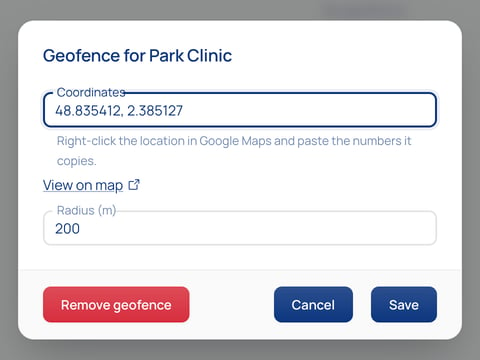
To stop checking location at a site, open it and click Remove geofence.
Choose the radius
We advise a radius of 150 to 300 meters. A phone finds its position from satellites, Wi-Fi and mobile networks. Inside a building, that position is often off by tens of meters, sometimes more. With a small radius, staff who are inside the building get flagged. Start around 200 meters and adjust after a few weeks of review. For a large campus, put the center in the middle and choose a radius that covers every building.
Staff near the edge see a warning on their phone, but a punch is flagged only beyond the radius. Each flagged punch carries a note with the distance, the radius and the accuracy the phone reported. The distance and its accuracy help you assess the flag and talk it through with the person; they do not prove that someone was or was not on site.
Good to know
- The site checked is the site of the assignment the punch matches. Otherwise it is the staff member's default site.
Questions? Contact your customer success contact.