
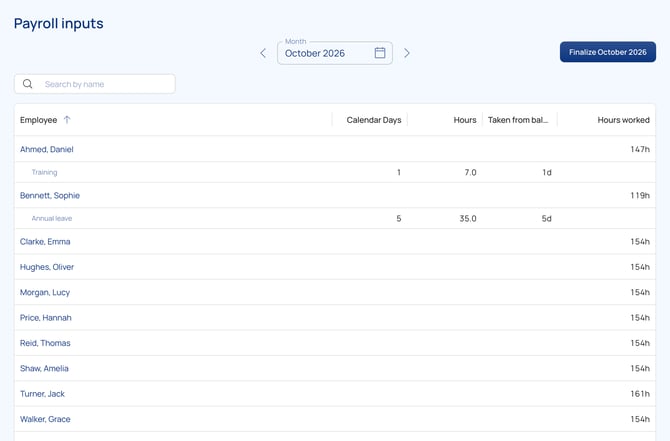
The Payroll inputs page gathers, for each employee, the figures you enter into payroll for a month: hours worked, special-time hours, overtime per rate, time off and payouts. When the month is checked, you finalize it. Later changes come back as corrections.
Available with the Human Resources module, when Payroll inputs is activated with your customer success contact.
Check the month
- Go to Reports > Time and Attendance Reports > Payroll inputs.
- Choose the month with the arrows or the calendar.
- Check the figures for each employee. Use Search by name to find someone.
Before you finalize
- Check the flagged punches of the month on both review pages (see "Review flagged punches").
- Reconcile the fiscal periods that end in the month. If one is not reconciled, the page tells you and links to the fiscal periods.
Finalize the month
- Click Finalize followed by the month, at the top right.
- Confirm.
Once finalized, the month can no longer be changed. If something changes later, for example a schedule change, it comes back as a correction.
Good to know
Momentum prepares the payroll figures. It does not compute pay: you enter the figures into your payroll software.
Questions? Contact your customer success contact.